Setting up Mail on Mac OSX Snow Leopard: Difference between revisions
Jump to navigation
Jump to search
imported>Henry.joshua Created page with "Category:Email Configuration and Setup ==Setting up Mail on Mac OSX Snow Leopard== *First you will need to open the Mail program, it is normally assigned to the dock but m..." |
imported>Henry.joshua No edit summary |
||
| (One intermediate revision by the same user not shown) | |||
| Line 2: | Line 2: | ||
==Setting up Mail on Mac OSX Snow Leopard== | ==Setting up Mail on Mac OSX Snow Leopard== | ||
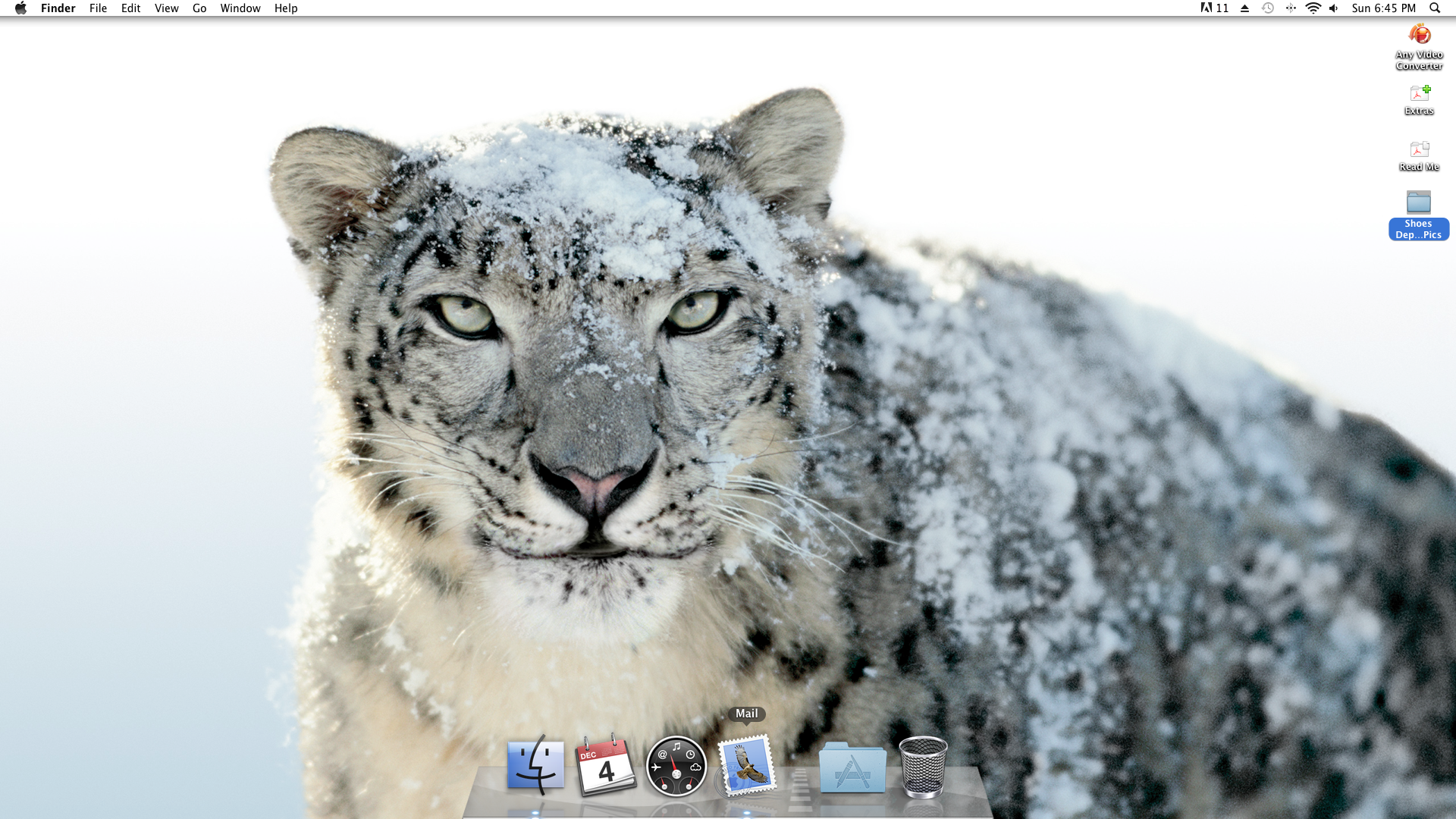
*First you will need to open the Mail program, it is normally assigned to the dock but may be in the applications folder. | *First you will need to open the Mail program, it is normally assigned to the dock but may be in the applications folder. | ||
**The icon for Mail is the postage stamp as seen in the screenshot below. | **The icon for Mail is the postage stamp as seen in the screenshot below. | ||
[[File:Mail1.png|option|800px|link=|alt=]] | [[File:Mail1.png|option|800px|link=|alt=]] | ||
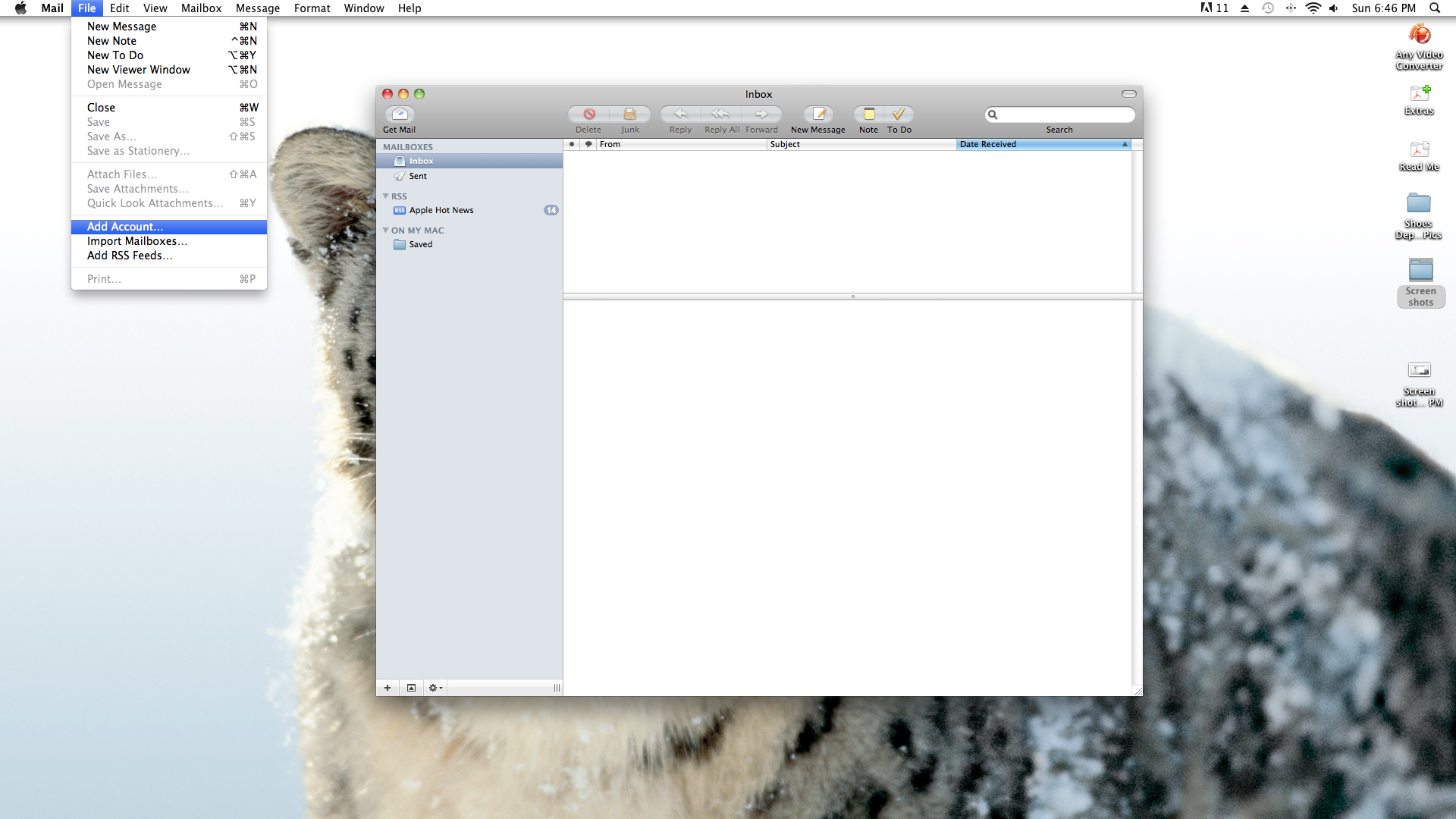
*Once you have opened the Mail program, you will need to select file in the menu bar at the top of the desktop and select add account. | *Once you have opened the Mail program, you will need to select file in the menu bar at the top of the desktop and select add account. | ||
{{alertbox | title = Menu Bar | text = In order to get the menu bar for the program you want, you must bring the program window to the front. It defaults to finder or another selected program otherwise.}} | {{alertbox | title = Menu Bar | text = In order to get the menu bar for the program you want, you must bring the program window to the front. It defaults to finder or another selected program otherwise.}} | ||
[[File:Mail2.png|option|800px|link=|alt=]] | [[File:Mail2.png|option|800px|link=|alt=]] | ||
*From the add accounts window you will start inputting you email information. | *From the add accounts window you will start inputting you email information. | ||
[[File:Mail3.png]] | [[File:Mail3.png]] | ||
*Click continue after filling out the appropriate information. | *Click continue after filling out the appropriate information. | ||
[[File:Mail4.png]] | [[File:Mail4.png]] | ||
{{alertbox | title = Username | text = On the incoming server window, the username field defaults to not include the "@acd.net" make sure to include this as well.}} | {{alertbox | title = Username | text = On the incoming server window, the username field defaults to not include the "@acd.net" make sure to include this as well.}} | ||
*Click continue after filling out the appropriate information. | *Click continue after filling out the appropriate information. | ||
[[File:Mail5.png]] | [[File:Mail5.png]] | ||
*Click continue after filling out the appropriate information. | *Click continue after filling out the appropriate information. | ||
[[File:Mail6.png]] | [[File:Mail6.png]] | ||
*Mail will check connection and give this screen. | *Mail will check connection and give this screen. | ||
[[File:Mail7.png]] | [[File:Mail7.png]] | ||
*Click continue to proceed unsecured. | *Click continue to proceed unsecured. | ||
[[File:Mail8.png]] | [[File:Mail8.png]] | ||
{{alertbox | title = SSL "on" | text = You may notice on the account summary page that SSL is on for the incoming server. Don't worry about it now, I will cover how to change this in the [[Mac Mail Server Settings | server settings wiki]].}} | |||
{{alertbox | title = SSL "on" | text = You may notice on the account summary page that SSL is on for the incoming server. Don't worry about it now, I will cover how to change this in the [[ | |||
*Select "take account online" and click create. | *Select "take account online" and click create. | ||
**Close the mail client and re-open it to verify you can send and receive email. | **Close the mail client and re-open it to verify you can send and receive email. | ||
[[File:Mail9.png]] | [[File:Mail9.png]] | ||
Latest revision as of 11:44, 19 December 2011
Setting up Mail on Mac OSX Snow Leopard
- First you will need to open the Mail program, it is normally assigned to the dock but may be in the applications folder.
- The icon for Mail is the postage stamp as seen in the screenshot below.
- Once you have opened the Mail program, you will need to select file in the menu bar at the top of the desktop and select add account.
 | Menu Bar - In order to get the menu bar for the program you want, you must bring the program window to the front. It defaults to finder or another selected program otherwise. |
- From the add accounts window you will start inputting you email information.

- Click continue after filling out the appropriate information.

|
| Username - On the incoming server window, the username field defaults to not include the "@acd.net" make sure to include this as well. |
- Click continue after filling out the appropriate information.

- Click continue after filling out the appropriate information.

- Mail will check connection and give this screen.

- Click continue to proceed unsecured.

|
| SSL "on" - You may notice on the account summary page that SSL is on for the incoming server. Don't worry about it now, I will cover how to change this in the server settings wiki. |
- Select "take account online" and click create.
- Close the mail client and re-open it to verify you can send and receive email.
