Mac Mail Server Settings: Difference between revisions
Jump to navigation
Jump to search
imported>Henry.joshua Created page with "Category:Email Configuration and Setup ==Checking server settings in Mac Mail== #Open the mail program. #Select mail in the menu bar at the top of the desktop. #Select "pr..." |
imported>Henry.joshua No edit summary |
||
| Line 2: | Line 2: | ||
==Checking server settings in Mac Mail== | ==Checking server settings in Mac Mail== | ||
#Open the mail program. | #Open the mail program. | ||
#Select mail in the menu bar at the top of the desktop. | #Select mail in the menu bar at the top of the desktop. | ||
#Select "preferences". | #Select "preferences". | ||
[[File:Settings1.png|option|750px|link=|alt=]] | [[File:Settings1.png|option|750px|link=|alt=]] | ||
*This will open the accounts preferences tab. | *This will open the accounts preferences tab. | ||
**Select the account you want to alter. | **Select the account you want to alter. | ||
[[File:Settings2.png]] | [[File:Settings2.png]] | ||
*Under the "account information" tab, it has the email address and incoming and outgoing server info. | *Under the "account information" tab, it has the email address and incoming and outgoing server info. | ||
**Clicking the drop down for the outgoing server and selecting "edit smtp server list" will take you to the detailed outgoing server options. | **Clicking the drop down for the outgoing server and selecting "edit smtp server list" will take you to the detailed outgoing server options. | ||
[[File:Settings4.png]] | [[File:Settings4.png]] | ||
[[File:Settings5.png]] | [[File:Settings5.png]] | ||
*Select ok when done making any changes or cancel if none were made. | *Select ok when done making any changes or cancel if none were made. | ||
**Back to the accounts preferences window, selecting the "advanced" tab will take you to the incoming server port settings. | **Back to the accounts preferences window, selecting the "advanced" tab will take you to the incoming server port settings. | ||
{{alertbox | title = Incoming server port | text = The incoming server port is defaulted to 995 with SSL. Un-checking SSL should switch to port 110.}} | {{alertbox | title = Incoming server port | text = The incoming server port is defaulted to 995 with SSL. Un-checking SSL should switch to port 110.}} | ||
[[File:Settings3.png]] | [[File:Settings3.png]] | ||
[[File:Settings6.png]] | [[File:Settings6.png]] | ||
*Once you're done making changes, close the accounts preferences window and you will be prompted to save changes. | |||
*Once | |||
[[File:Settings7.png]] | [[File:Settings7.png]] | ||
Revision as of 11:12, 19 December 2011
Checking server settings in Mac Mail
- Open the mail program.
- Select mail in the menu bar at the top of the desktop.
- Select "preferences".
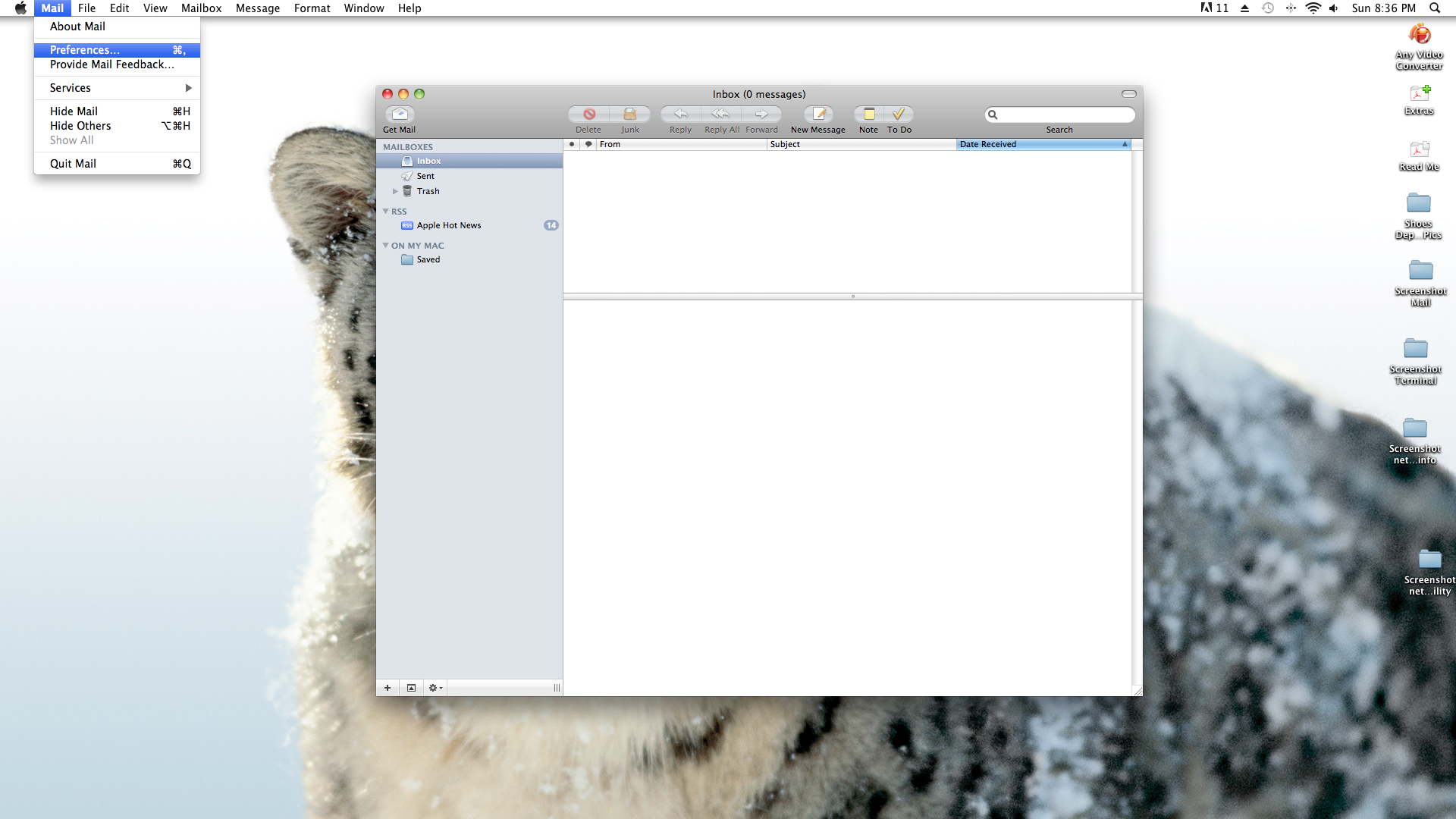
- This will open the accounts preferences tab.
- Select the account you want to alter.

- Under the "account information" tab, it has the email address and incoming and outgoing server info.
- Clicking the drop down for the outgoing server and selecting "edit smtp server list" will take you to the detailed outgoing server options.


- Select ok when done making any changes or cancel if none were made.
- Back to the accounts preferences window, selecting the "advanced" tab will take you to the incoming server port settings.
 | Incoming server port - The incoming server port is defaulted to 995 with SSL. Un-checking SSL should switch to port 110. |


- Once you're done making changes, close the accounts preferences window and you will be prompted to save changes.
